
Disclaimer: Since the release of Windows 10, Microsoft has changed its policy regarding Windows updates multiple times. While we are making every effort to keep this article updated as things change, please know that the procedures and screenshots described below may have changed slightly. As always, if you need assistance, we recommend you call our support team if you have a valid support contract, or email us for further assistance.
Background:
Windows 10 receives updates very often. About once a week it gets important fixes and patches requiring a system reboot to be installed. By default Windows 10 is configured to reboot automatically for the installation of important updates, but this can cause inconveniences to you. Perhaps, you don’t want to waste your time waiting until the update installation finishes and want to work on your PC right now. Unfortunately, Microsoft has made it nearly impossible for our remote administration tools to control these settings as they believe doing so is a "security risk".
NOTE: The screenshots used in this article are from Windows 10 with Anniversary Update. Windows 10 Anniversary Update will be available for free, to all Windows 10 users, as of August 2, 2016.
Action Steps:
This method allows you to choose the time when you don’t want your PC to be rebooted (such as during work hours). However, your PC will be able to reboot to install updates when the active hours end.
1. Use the Settings shortcut from the Start Menu
Using the Start Menu is arguably one of the fastest ways to open Settings. Open the Start Menu and, on its left section, you’ll find a shortcut for Settings.
If you click or tap on the Expand button from the top left corner of the Start Menu, the name Settings is displayed near its icon. That way, you get a confirmation that you’re clicking/tapping on the right thing.
2. Click on Update and Security
3. Click on Windows Update
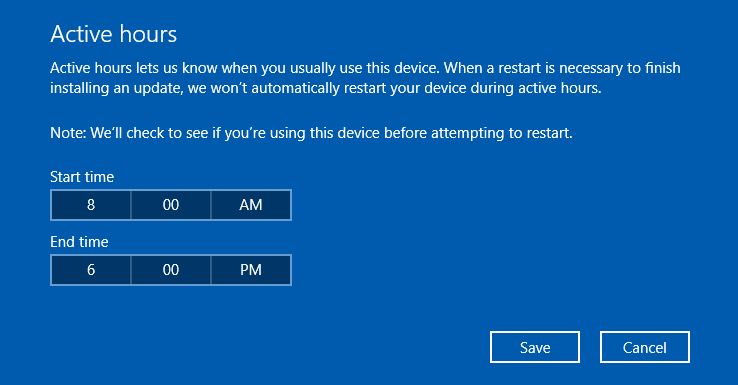
4. Click on Active Hours and specify when you don’t want your PC to reboot.
5. Once you set the hours, click Save to close the screen.
6. If the restart has already been planned, you can also click on Restart Options and modify the restart time and postpone updates installation as shown below: 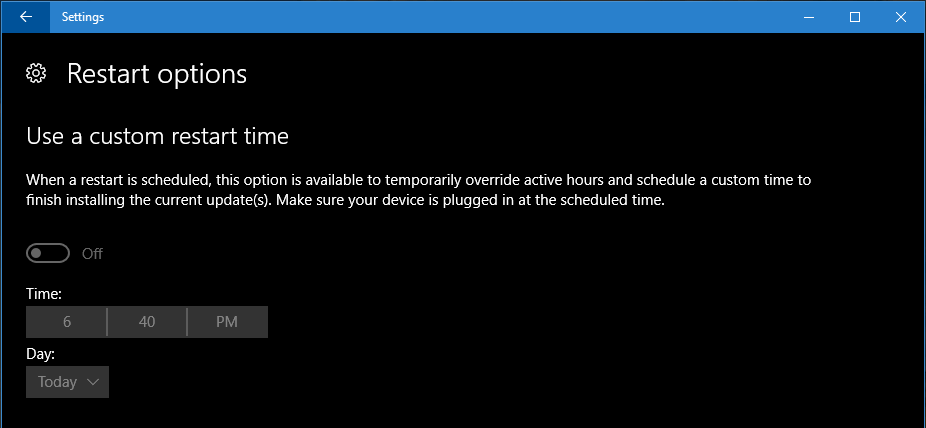
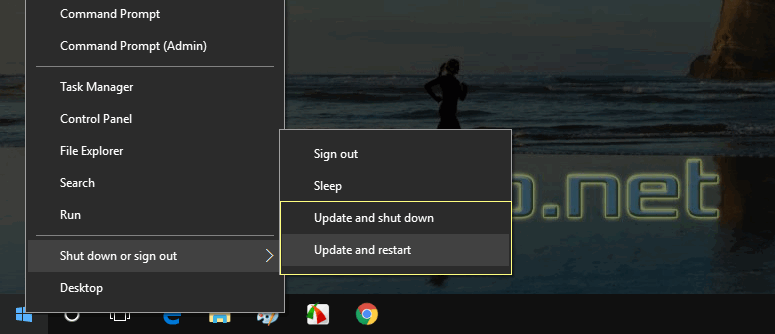
7. After you have disabled auto-restart you can decide when you wish to reboot or shutdown and install updates. You will be able to choose: Update and shut down or Update and restart:
IMPORTANT: If you do not manually reboot or shutdown to install the updates, your computer will still automatically reboot once the "Active Hours" you set above have expired.
Hopefully, these methods will help you to disable automatic restart in Windows 10.
As a reminder, this should fix your issue, however, Microsoft has made several changes to the way windows updates and its reboot process works so we recommend that you check this article often or subscribe to be notified in case of updates.
Once we are able to determine a better solution to manage these updates, we will post that update here.
0 Comments