
Many of our customers need the ability to access external files, such as Excel or PDF and save the directly to their local machine while accessing our servers. This is easily done by following these steps:
Note: If you have already configured your local computer, you can skip to Step 2:
STEP 2: CONNECT TO YOUR LOCAL COMPUTER DRIVES FROM THE SERVER
STEP 1: CONFIGURE YOUR LOCAL MAC COMPUTER TO ALLOW ACCESS TO YOUR DRIVES:
When copying files from Mac to PC, it works best to share a specific folder, rather than the entire drive.
Here's how:
1. Open the "Remote Desktop" application.
2. Select the Pure Technology server in the main "My Desktops" window.
3. Click the "Edit" button (the pencil icon).
4. In the popup, click the "Redirection" button (folder icon - see image below)
5. In the popup, click the "+" button.
6. Give the Share a name. (This will be the name that appears on the server).
7. In the "Path" field, browse to the mac folder you want to share.
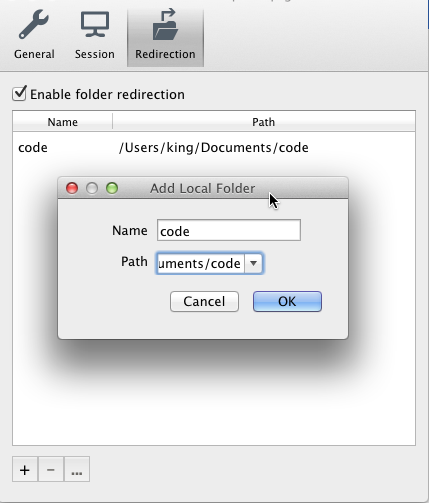
8. Once you are done, click the "OK" button and connect to the server.
Note: you should only need to do this one time, however it may be necessary to configure this for each computer you use to access our servers.
0 Comments