
Once you have connected to the server, it is easy to access the drives on your local PC from any dialogue that allows you to browse for files.
Note: if you do not see your local drive listed, follow the instructions in
STEP 1: CONFIGURE YOUR LOCAL COMPUTER TO ALLOW ACCESS TO YOUR DRIVES
STEP 2: CONNECT TO YOUR LOCAL COMPUTER DRIVES FROM THE SERVER
1. Connect to the application server.
2. From within Quickbooks, Excel, or any other application which supports file browsing, navigate to the "Computer" or "My Computer" shortcut. You will then see a listing like "C on SCOTT" where "C" is the name of the hard drive on your computer and "SCOTT" is the actual name of your computer.
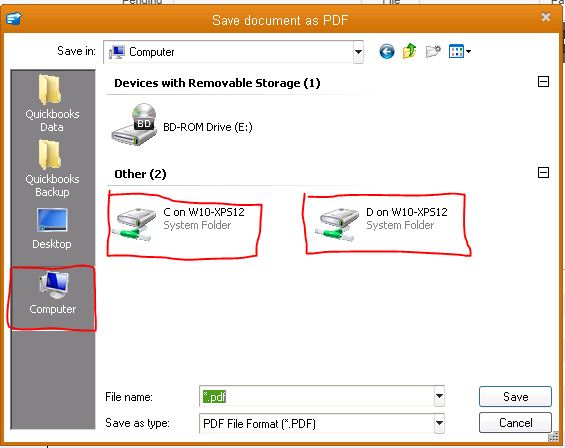
3. Once you select the drive you want, you can browse anywhere on your "local" computer's hard drive and save or open the file.
Note: to access your User directory (i.e. My Documents or Desktop), you will navigate to the path: C:\Users\{your user name}.
You will then see folders such as "Desktop", "My Documents", etc.
0 Comments