
This works on any Apple iPhone or iPad with the version 4.3 software or newer. You can update your iPhone or iPad using Apple's iTunes software. If you already have your iPhone or iPad running Microsoft Exchange Server with IMAP, disable the account in Mail Settings.
If you have not upgraded the software, or prefer not to use ActiveSync, you can still use IMAP.
NOTE: All of the following steps must be performed on your Handheld.
- Upgrade your phone to the latest version of IOS.
- If you are setting up a Iphone or a 3/4G Ipad, Please turn off WIFI before attempting activation
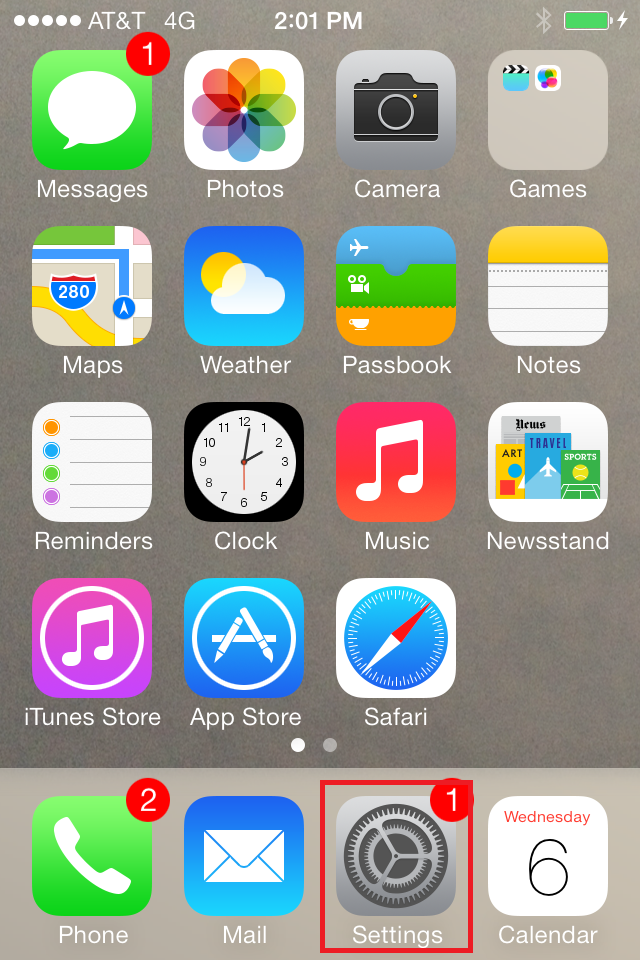
- Go to Settings
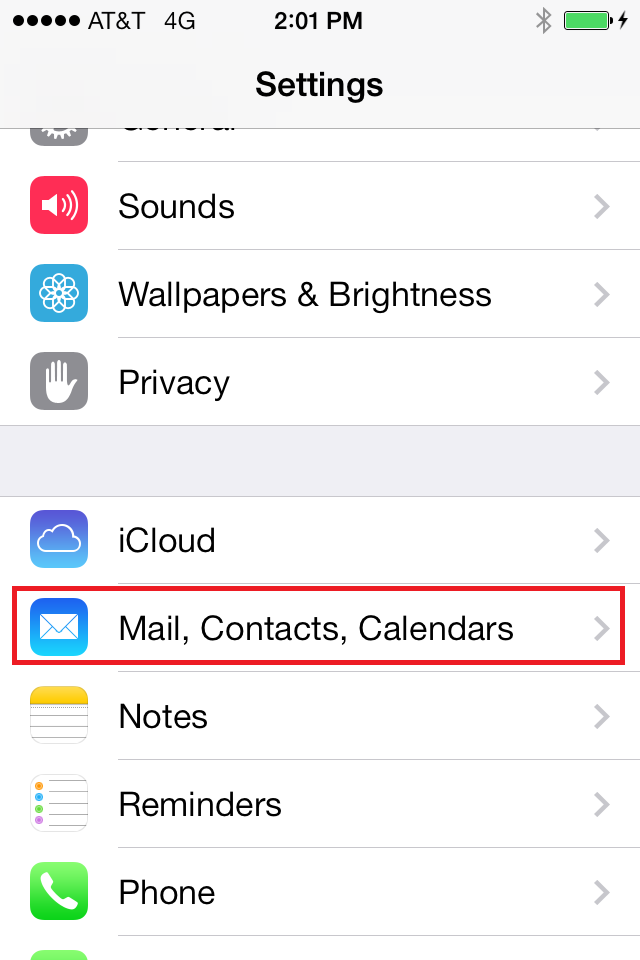
- Select "Mail, Contacts, Calendars"
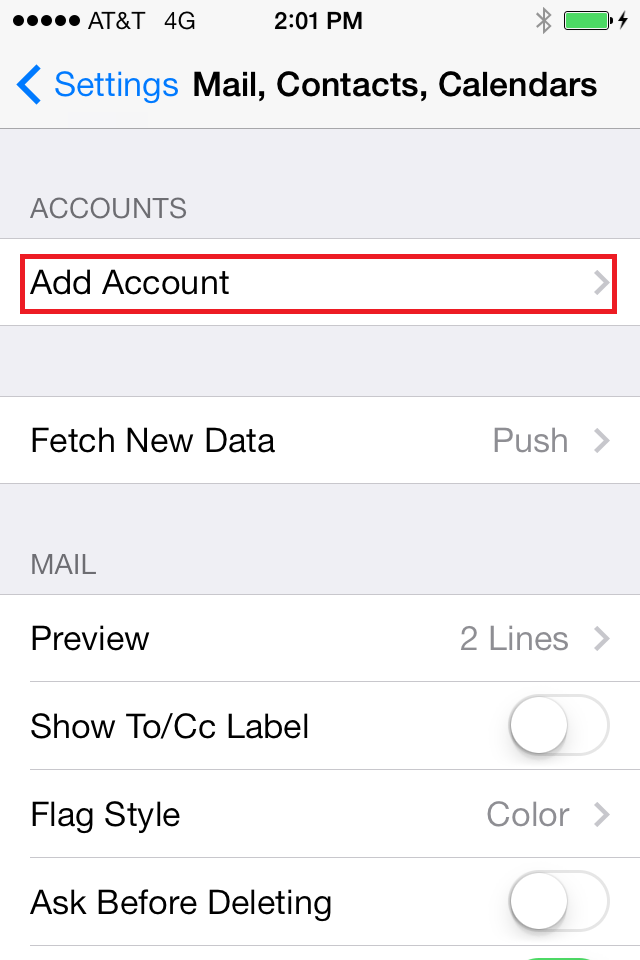
- Choose "add account."
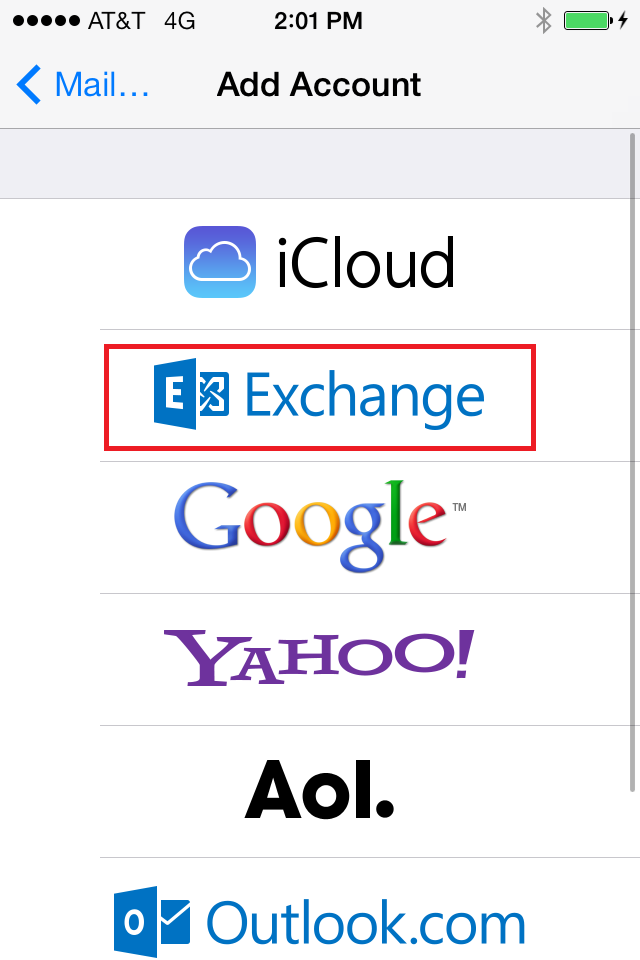
- Select "Microsoft Exchange."
- You will now see a prompt for your Email Address, Password and Account Description
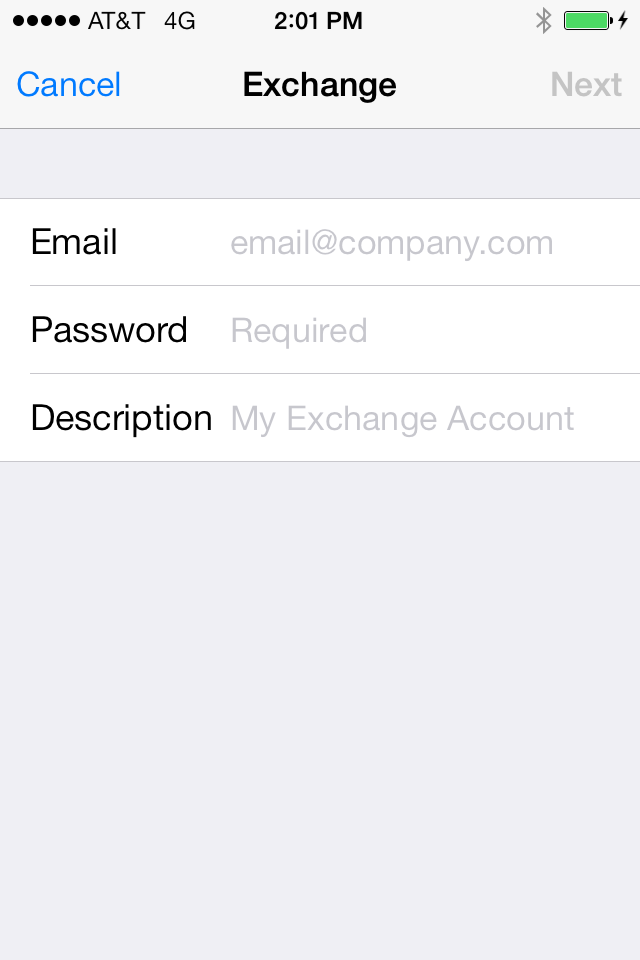
- A new screen will appear requesting more information.
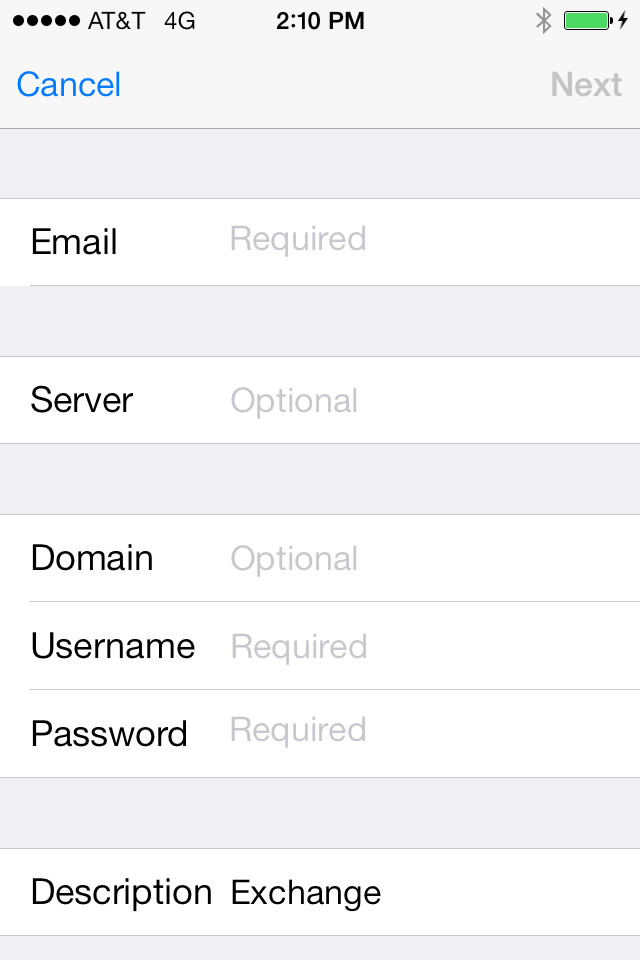
Enter the Following:
- Email Address: <your e-mail address - i.e. first initial last name @ yourdomain.com>
For example, for Don Johnson you would enter "djohnson@pureittech.com". - Server: mail10.myoutlookonline.com (pre 2012) or mail11.myoutlookonline.com (2013 and later)
If your company's account (not your individual account) was active with our services prior to 12.31.2013 you will most likely be on our mail10 server. Otherwise you will be on mail11.
- Domain: sh10.lan
- User Name: your email address (same as above) or username (if provided)
- Password: Your password
Note: If you do not see a "server" field on the screen, simply enter the settings it asks for and click next. The following screen will have an
option to enter the server.
IOS TROUBLESHOOTING: In some cases, using the full email address as the username will not validate/verify the account. In this case, you will want to use the actual username. This username can be found on your WELCOME email or you can call/email our support desk and ask the technician for this info.
The username format is like "sh11.lan\{partial company name}.{user name}". (for example, "Bob Johnson" at "My Company" would be something similar to sh11.lan\mycomp.bjohnson).
- Email Address: <your e-mail address - i.e. first initial last name @ yourdomain.com>
- Setup will complete and will now ask you to choose the data you would like to sync. You may choose Mail, Contacts, Calendar, Reminders or Notes or all five.
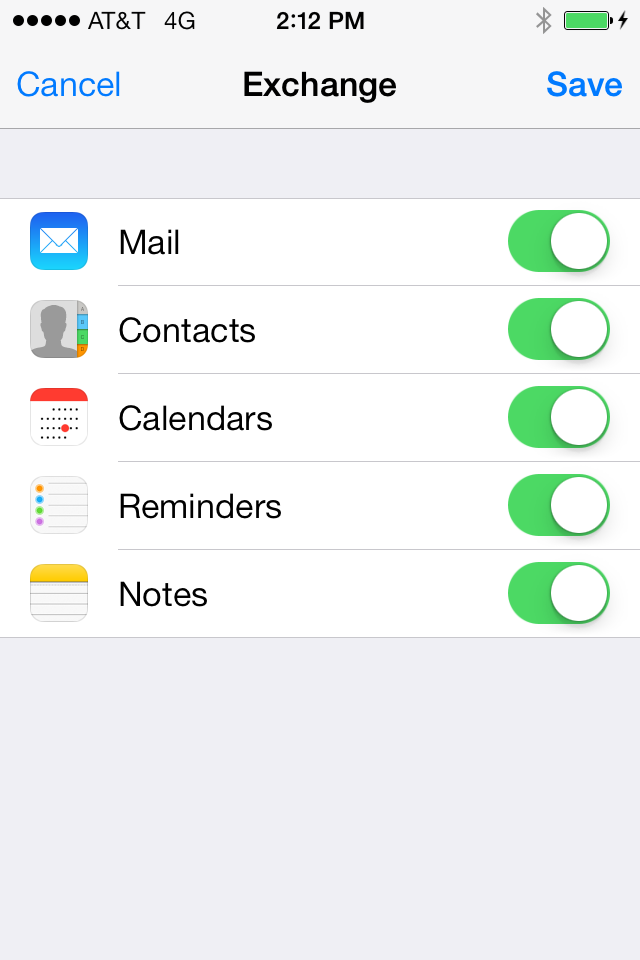
Note: You cannot sync Contacts and Calendars from both Exchange and iTunes. You must choose one or the other. The iPhone will delete your old entries when you enable this. - Choose "Save". Your setup has now completed. Please allow some time for the data to synchronize.
Note: If you have a very large email box, this can take 24-48 hours.
0 Comments